Velocity Arena · Gotham Tech · Day 13
Make Your Equation Poster
Your poster tells the story of your bot's distance equation. You'll build it in Canva, and it's the poster you'll teach a visitor from on Thursday — so make the math easy to see and easy to explain.
1 What your poster must show
Four things have to be on it. Everything else is decoration.
- Your team name and the names of everyone on your team.
- Your equation, written big —
distance = speed × time + start-up, filled in with your numbers (likey = 38x − 7). Make it the biggest thing after the team name. - Your graph — the dots for your five trials. Drive time in seconds goes across the bottom; distance in cm goes up the side.
- Your percent-change result add Tuesday — how much you cut your prediction error, in your own words.
2 Here's a finished one
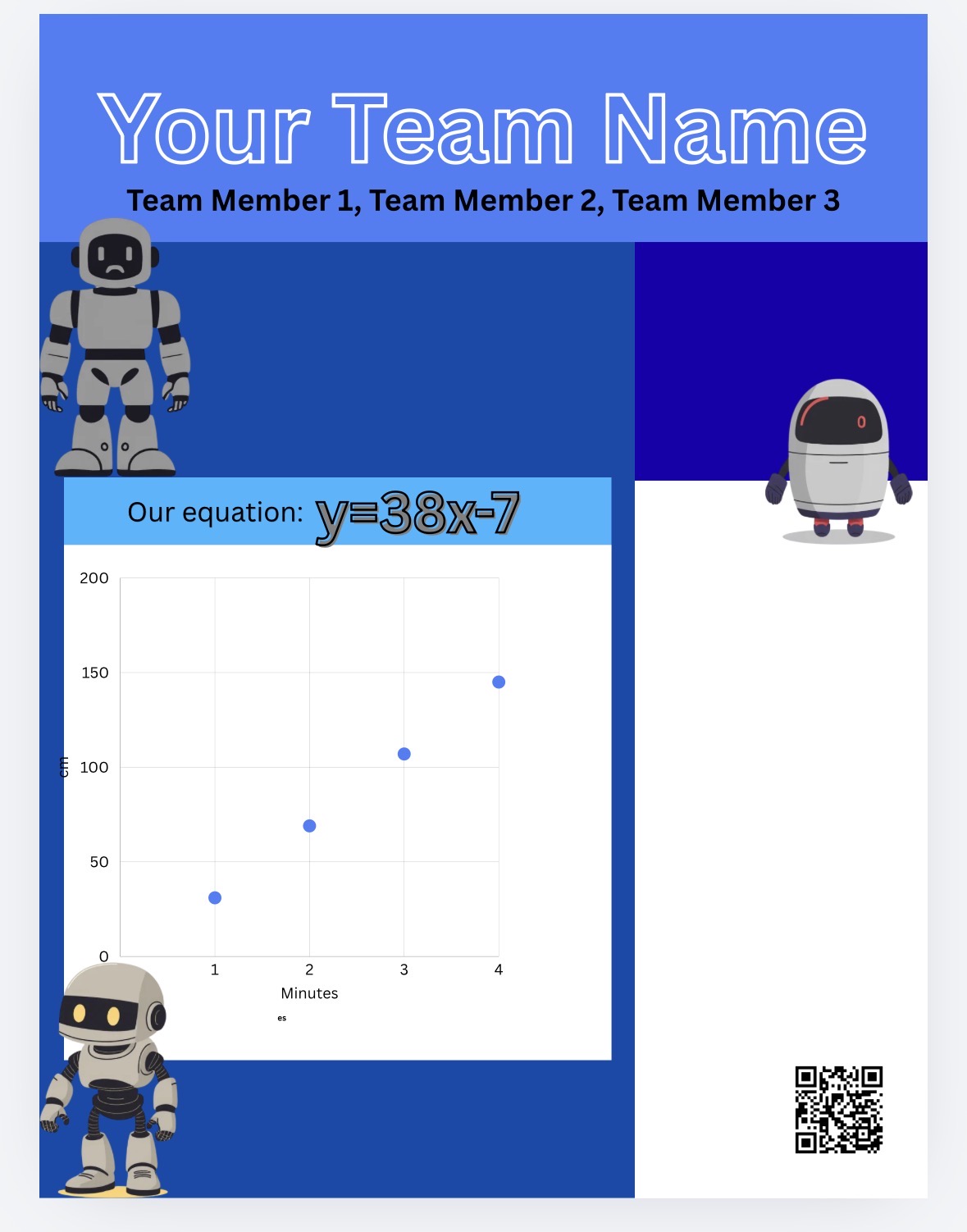
Notice how the equation sits right at the top, the graph shows the real trial dots, and the team name and members are easy to find. Someone across the room can tell what this team's bot does.
3 Build it in Canva — step by step
- Open Canva and start a poster. Search "poster" and pick a template you like, or start from a blank poster. Any of the layouts below work.Signed in with your class account? Use it so your work saves.
- Add your team name and members at the top.
- Add your equation — BIG. Use a text box and make it the largest text after the title. This is the single most important thing on the poster.Write it with your real numbers, e.g.
y = 38x − 7. - Add your graph. Two easy ways: (a) take a clear photo of the graph from your worksheet and drop it in, or (b) rebuild it with Canva's chart tool using your drive times and measured distances.Label the axes: Drive time (seconds) across the bottom, Distance (cm) up the side.
- Tuesday: add your percent-change result. One line — the change you made and how much it improved your prediction.
- Decorate lightly. A robot image, your team color, a clean title. Don't bury the math.
- Add a QR code so visitors can scan your poster and see your full design. First share the design to get a link: click Share (top right) → Anyone with the link → Copy link. Do this even if the design is still empty — you can keep editing after. Then click Apps → search "QR Code" → paste your link → Generate code → drag it onto the poster.Put it in a corner, at least the size of a large postage stamp, on a plain light background — a QR code on top of art or a dark color won't scan.
- Test the QR code before you print. Open your phone camera, point it at the screen, and make sure the link opens. Also check that the link is shared so anyone can view it — if it only opens for you, visitors will hit a permission wall.
- Save it for Thursday. Download as PNG or PDF, or keep the Canva link handy — that's what you'll teach visitors from at the exhibition.
4 Layout inspiration
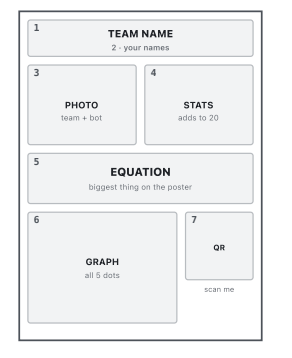
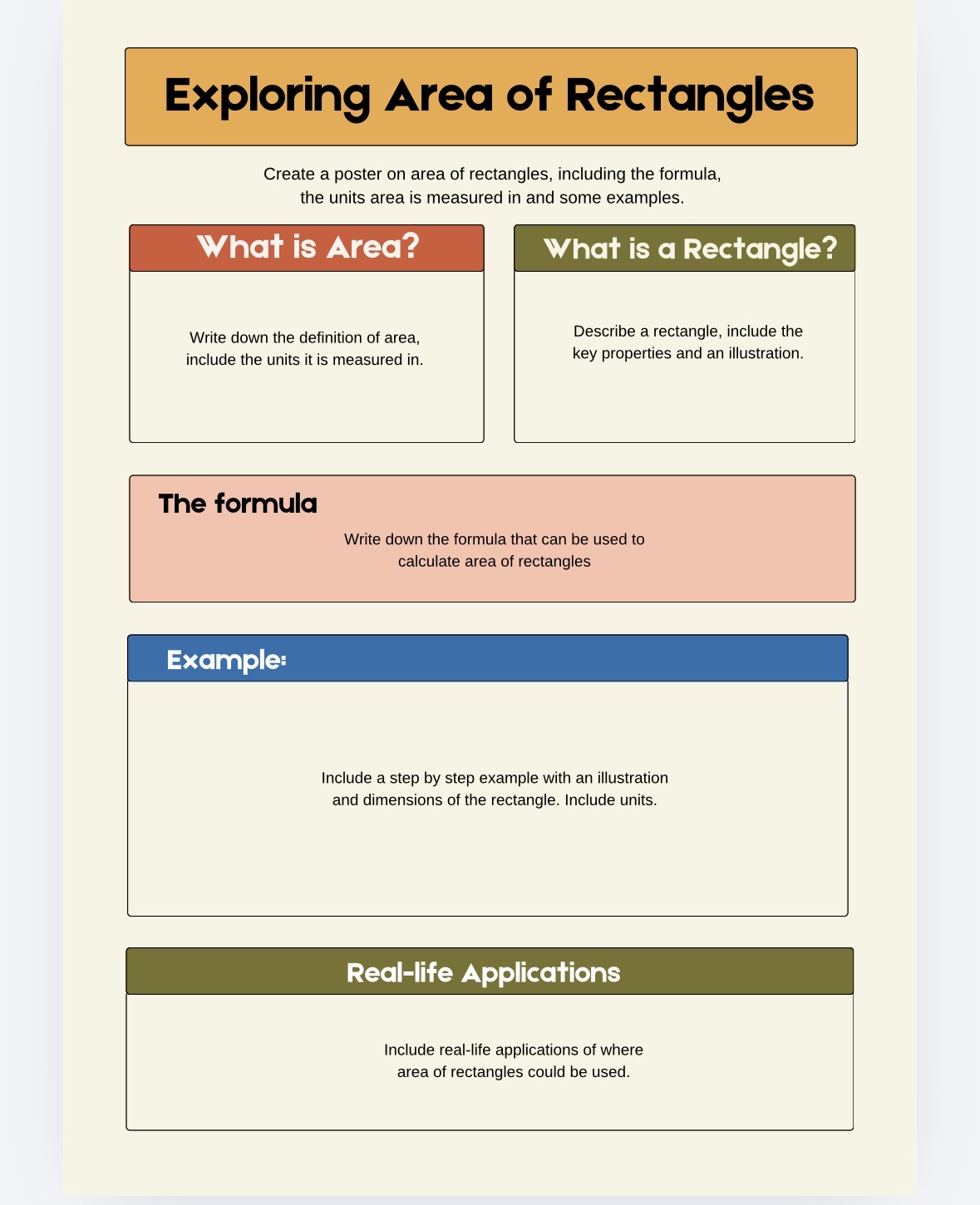
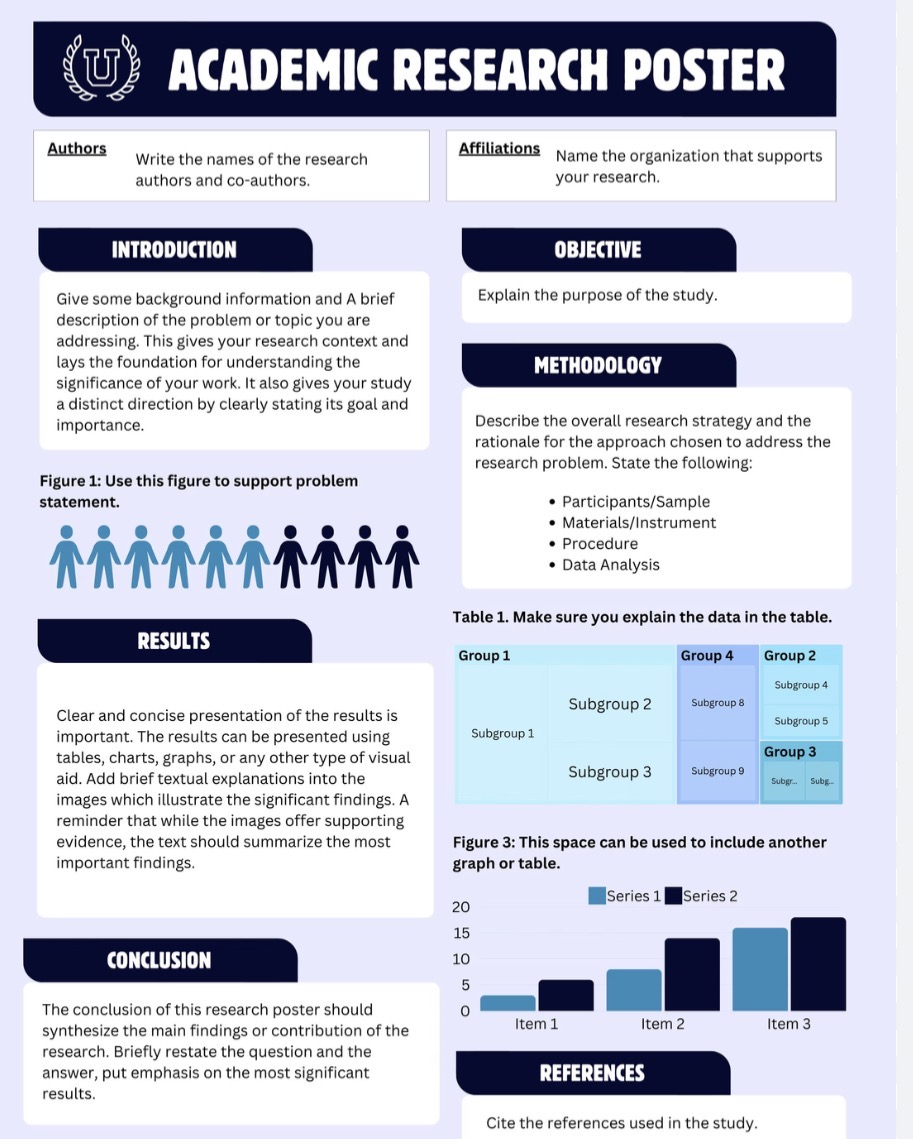
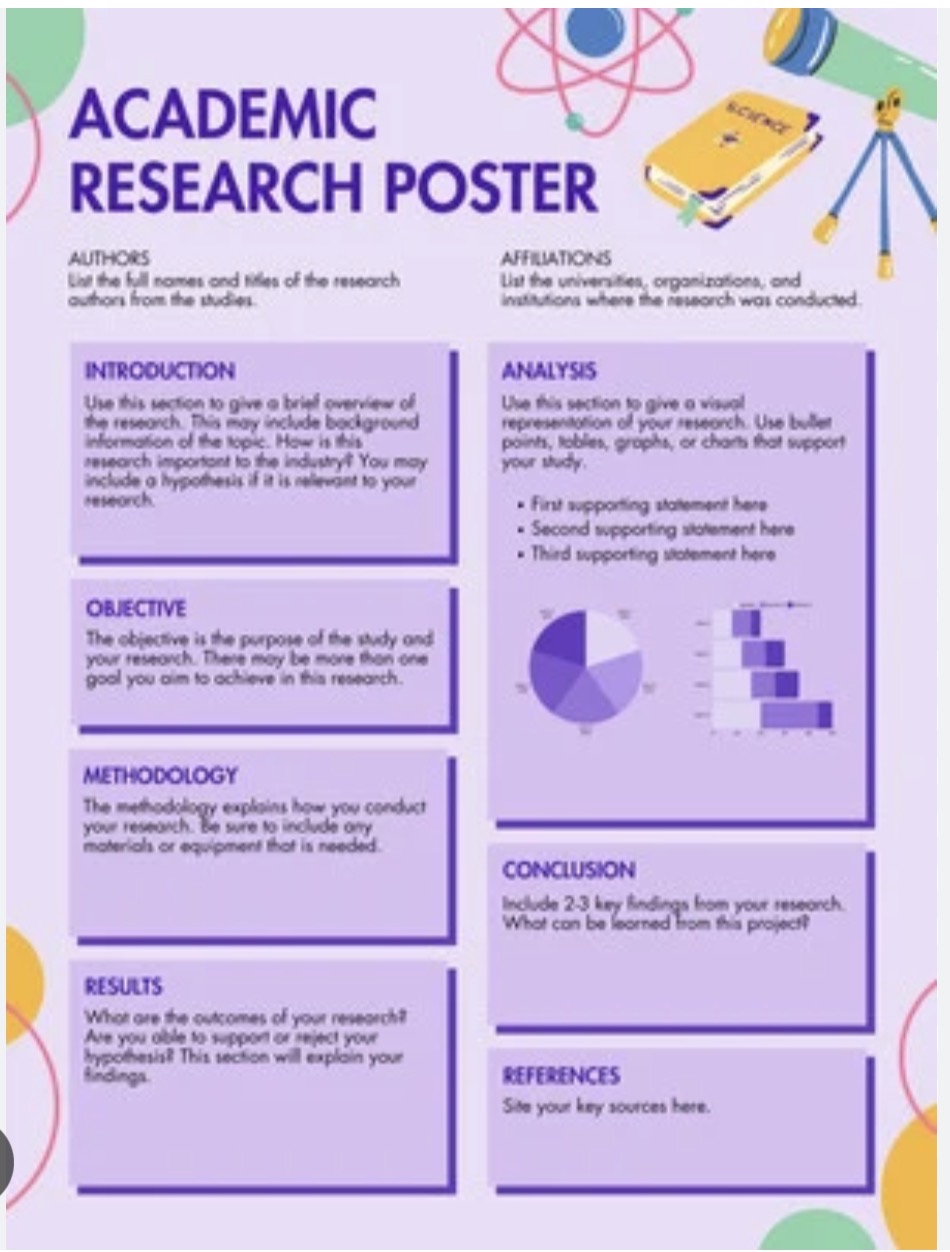
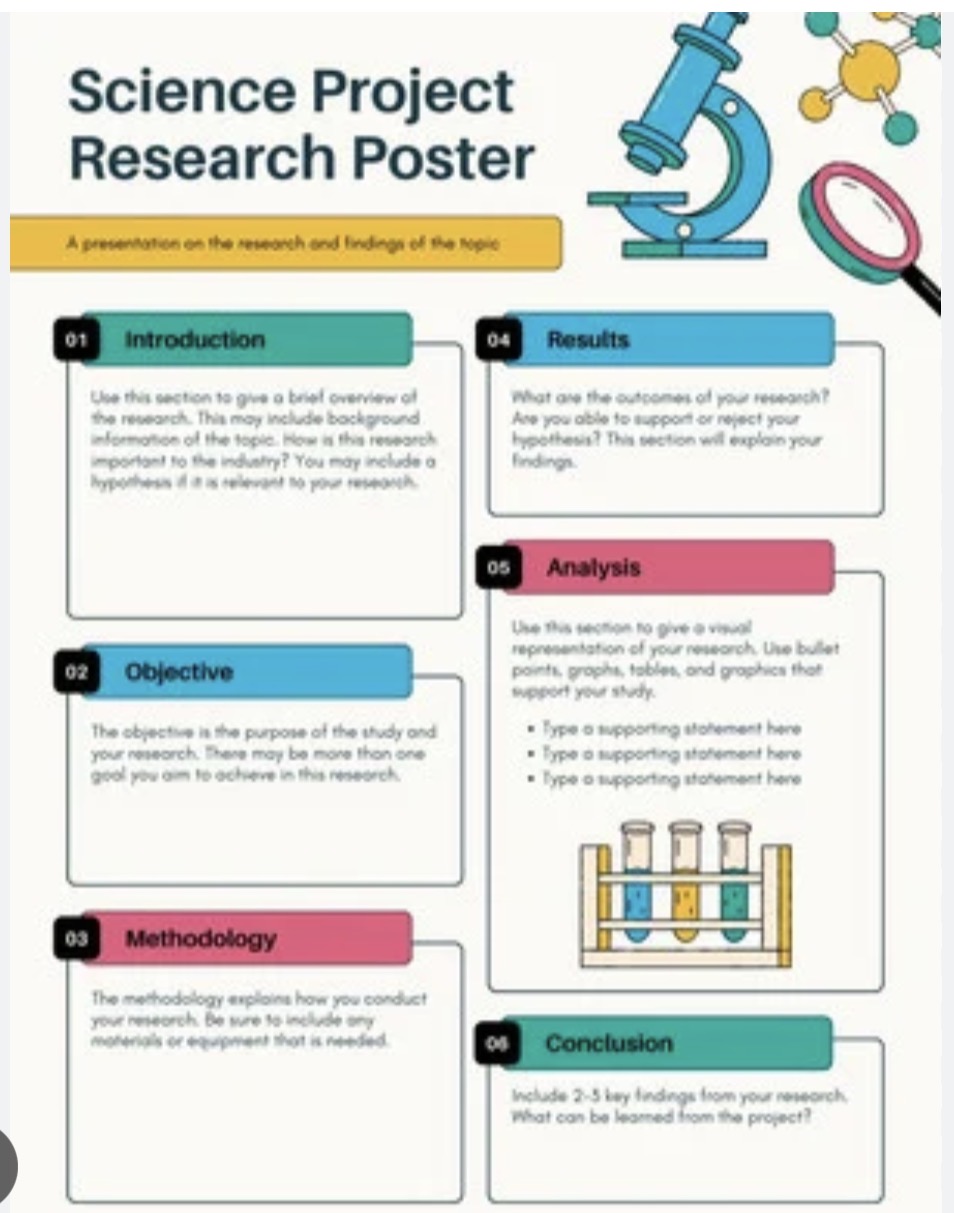
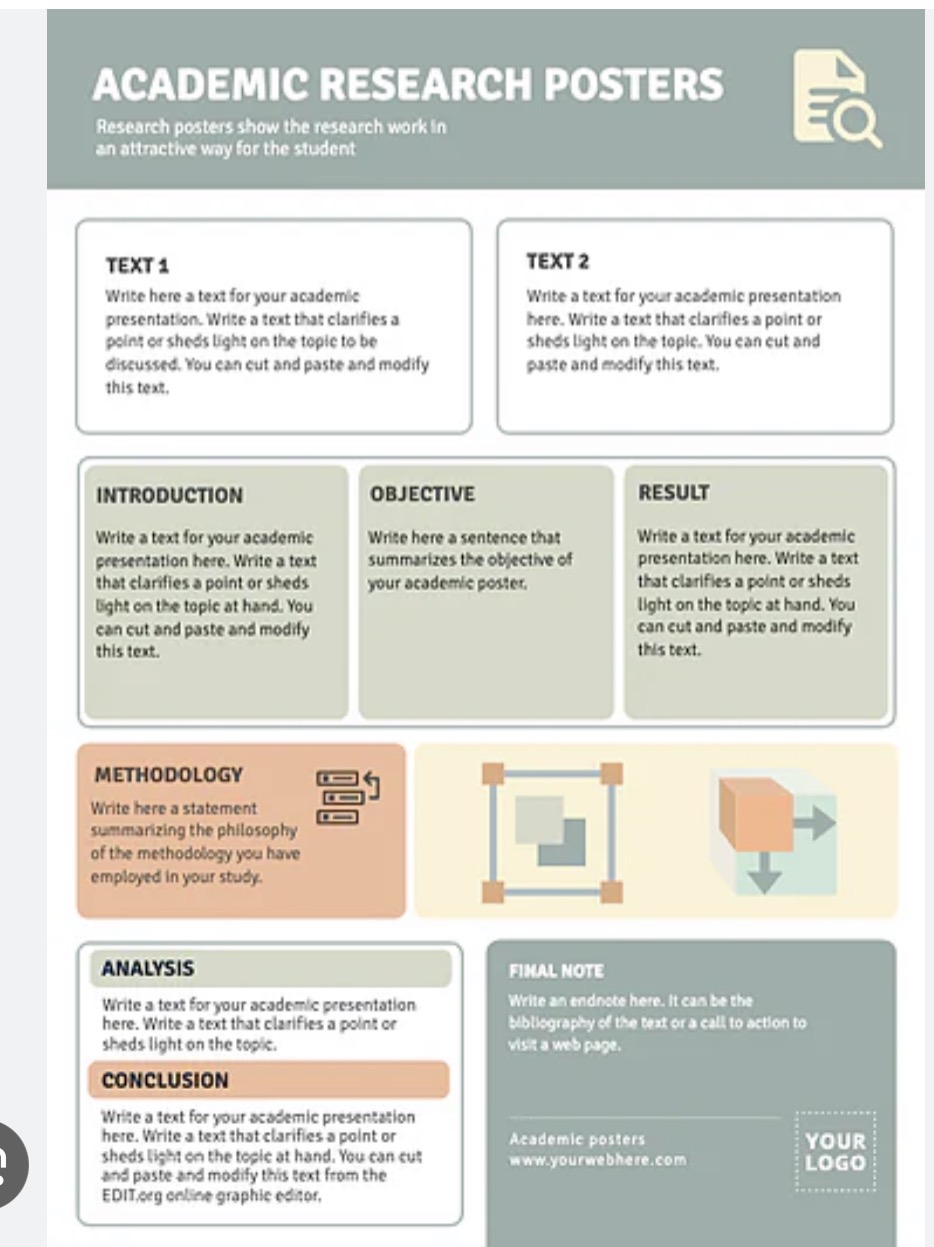
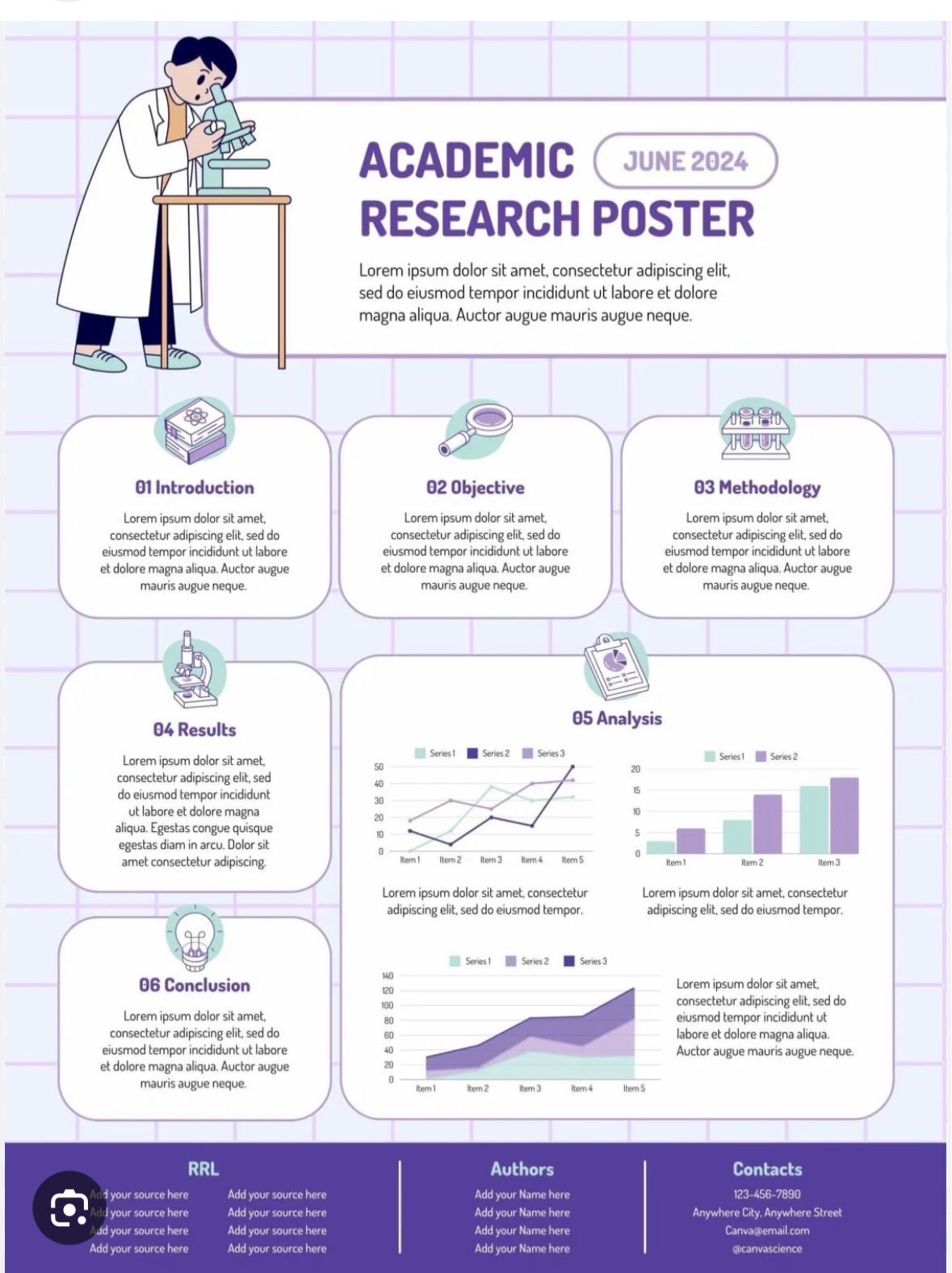
These are here for layout ideas only — how to arrange a title, a few boxes, and a chart on one page. Yours is about your equation, not a research report, so keep it simpler than these. Look at how each one uses a strong title bar, clear sections, and one or two visuals.
5 Before Thursday — check your poster
- Can someone across the room read your equation? If not, make it bigger.
- Does your graph have axis labels (seconds and cm)?
- Is everyone's name on it?
- Is your percent-change result added?
- If you added a QR code — does it scan with a phone, and does the link open for someone who isn't you?
- Can you explain every number on the poster in one sentence? "The 38 means our bot goes 38 cm every second; the −7 means it loses 7 cm getting started."